TL;DR
Configure AdGuard Home for network-wide ad blocking and tracker prevention. This guide covers blocklist selection, custom filtering rules, and DNS optimization.
Prerequisites:
- AdGuard Home installed and running
- Access to AdGuard UI (default port
3000, or3080on OPNsense) - Basic understanding of DNS
- Optional: OPNsense setup guide if running AdGuard on OPNsense
What you’ll configure:
- Blocklist selection strategy (conservative to aggressive)
- Custom filtering rules and whitelisting
- DNS settings and query logging
- Monitoring and maintenance
Blocklist Selection Strategy
Navigate to Filters → DNS Blocklists in AdGuard UI.
Philosophy
Two approaches:
- Start slow, add lists gradually and monitor your query logs and whitelist false positives.
- Alternatively, enable all lists and then constantly troubleshoot when things don’t work. And they won’t!
I highly recommend the first approach, the second one leads to many unhappy family members.
The lists below are what I currently use alongside my custom filtering rules. My setup changes regularly, so don’t blindly copy it. Figure out what lists work best for your own use case and network.
Essential Blocklists
| List | Domains | Purpose |
|---|---|---|
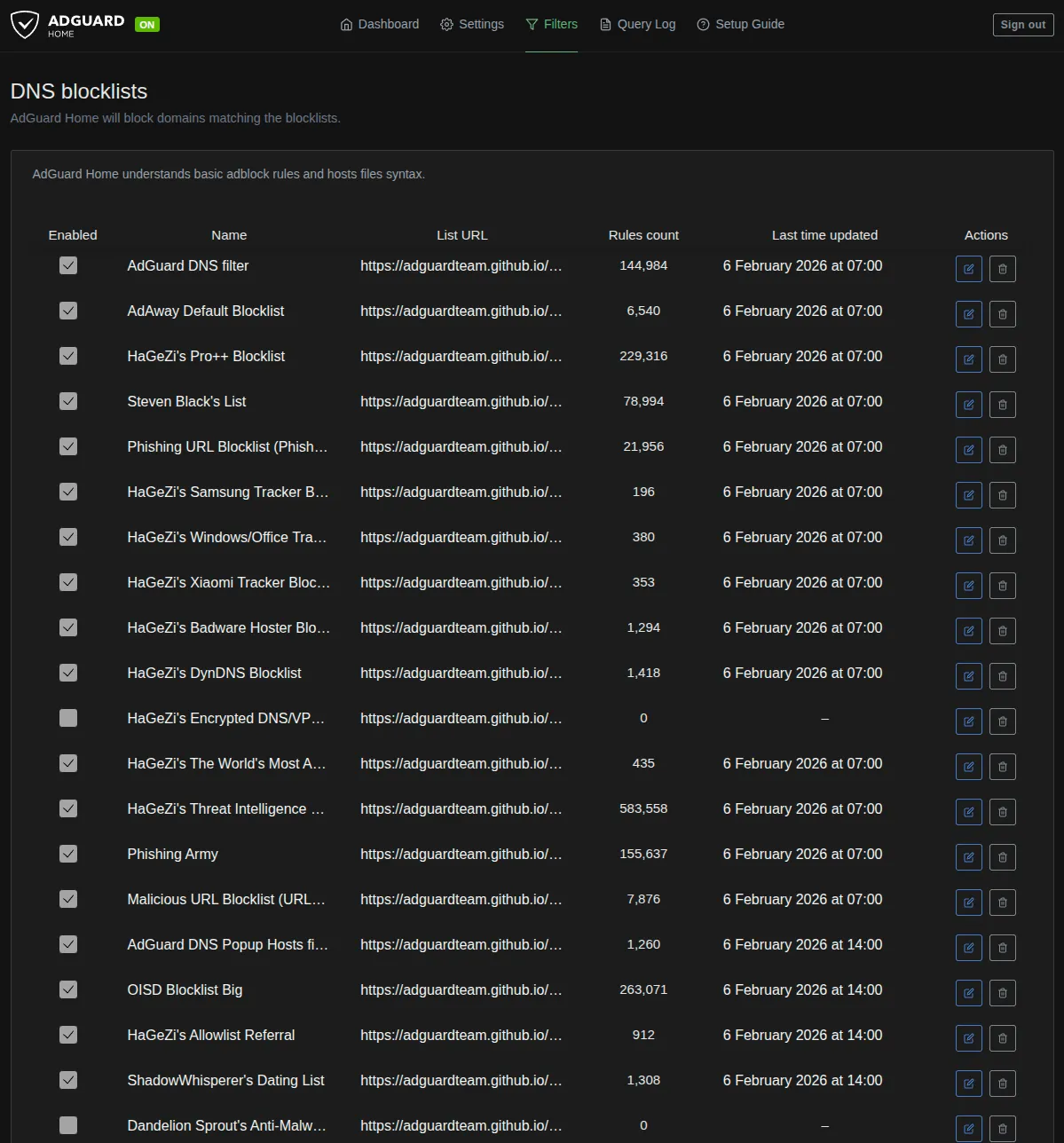
| AdGuard DNS filter | ~145K | Built-in, standard ads and trackers |
| AdGuard DNS Popup Hosts filter | ~1.3K | Popup and redirect ads |
| AdAway Default Blocklist | ~6.5K | Mobile ad servers |
| AWAvenue Ads Rule | ~86 | Chinese ad networks |
| OISD Big | ~263K | Comprehensive balanced blocking |
| HaGeZi Pro++ | ~229K | Ads, tracking, telemetry, malware |
Most of these are available directly through Add Blocklist → Choose from the list in AdGuard. For any that aren’t, use Add a custom list and paste the URL.
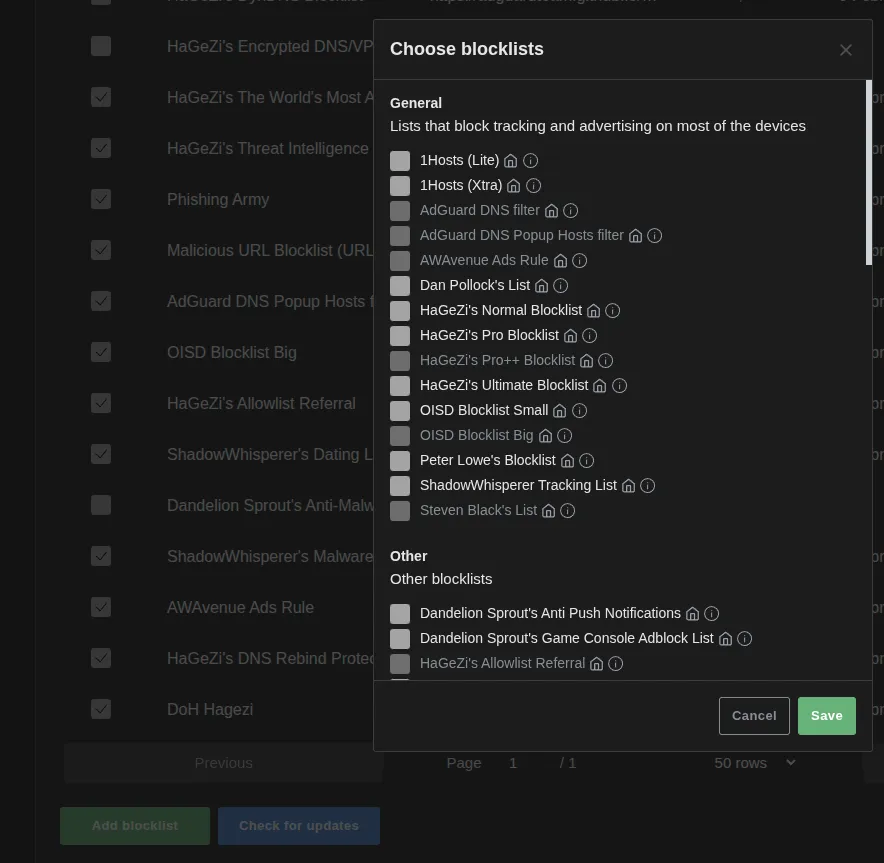
HaGeZi Device Tracker Lists
HaGeZi maintains device-specific tracker lists that block telemetry without breaking functionality:
| List | Domains | Purpose |
|---|---|---|
| Samsung Tracker | ~196 | Samsung TV and phone telemetry |
| Windows/Office Tracker | ~380 | Microsoft telemetry and diagnostics |
| Xiaomi Tracker | ~353 | Xiaomi device telemetry |
HaGeZi Security Lists
| List | Domains | Purpose |
|---|---|---|
| Threat Intelligence Feeds | ~584K | Malware, phishing, C2 servers |
| Badware Hoster | ~1.3K | Hosting providers known for malware |
| Most Abused TLDs | ~435 | Blocks entire TLDs used almost exclusively for spam |
| DynDNS | ~1.4K | Dynamic DNS services abused by malware |
| Encrypted DNS/VPN/TOR/Proxy Bypass | — | Prevents devices from bypassing your DNS filtering |
| DNS Rebind Protection | ~11 | Blocks DNS rebinding attacks |
HaGeZi also provides an Allowlist Referral list (~912 domains) that prevents false positives from aggressive blocklists. Worth enabling if you’re running Pro++ or multiple lists.
Other Security Lists
| List | Domains | Purpose |
|---|---|---|
| Steven Black’s List | ~79K | Ads + malware + fake news |
| Phishing Army | ~156K | Phishing domains |
| Phishing URL Blocklist | ~22K | PhishTank and OpenPhish combined |
| URLHaus | ~8K | Malware distribution sites |
| ShadowWhisperer’s Malware | ~42K | Malware domains |
| ShadowWhisperer’s Dating | ~1.3K | Blocks dating sites |
| Dandelion Sprout’s Anti-Malware | — | Additional malware protection |
Custom Filtering Rules
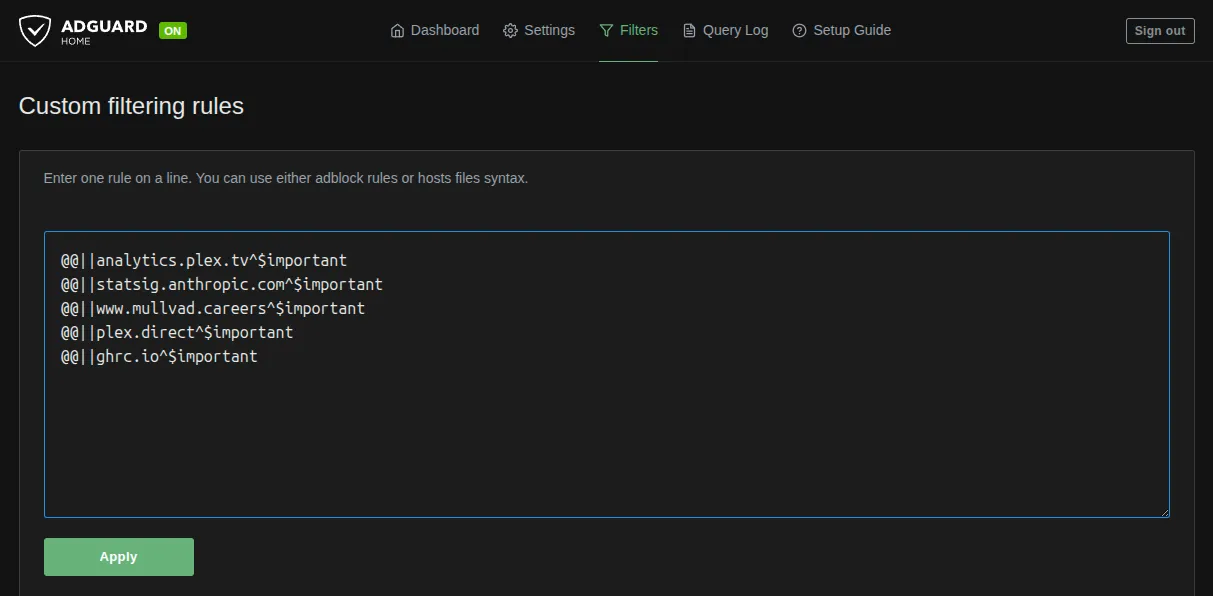
Navigate to Filters → Custom Filtering Rules.
Rule Syntax
||example.com^          # Block domain and all subdomains
||ads.example.com^      # Block specific subdomain
@@||example.com^        # Whitelist/unblock domain
Whitelisting False Positives
Aggressive lists block legitimate services. Whitelist as needed:
@@||cdn.jsdelivr.net^
@@||fonts.googleapis.com^
@@||ajax.googleapis.com^
Finding what to whitelist:
- Navigate to
Query Log - Filter by client IP having issues
- Look for blocked domains during failure
- If domain looks legitimate, whitelist it
DNS Configuration Optimization
Disable DNS Caching
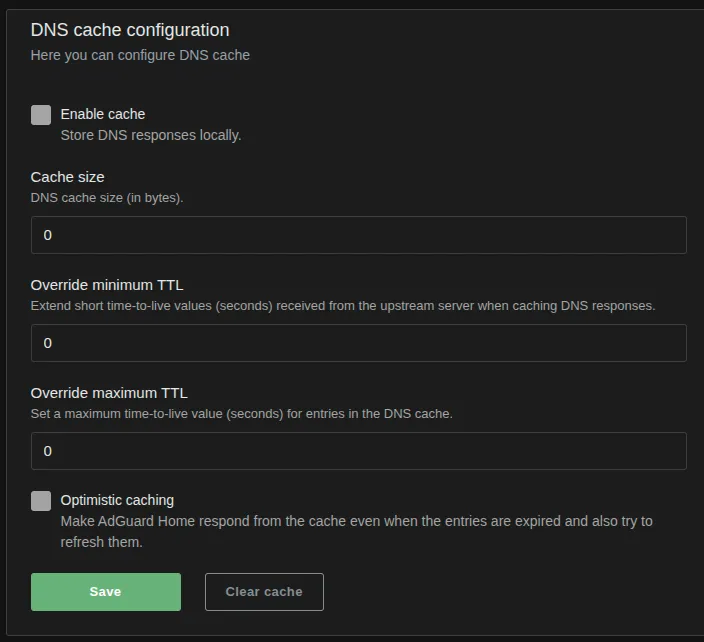
Navigate to Settings → DNS Settings → DNS Cache Configuration.
Set everything to zero:
cache_size: 0
cache_ttl_min: 0
cache_ttl_max: 0
Disable AdGuard’s cache if you have an upstream resolver (like Unbound) that already handles caching. Two cache layers cause stale entries, inconsistent results, and harder debugging.
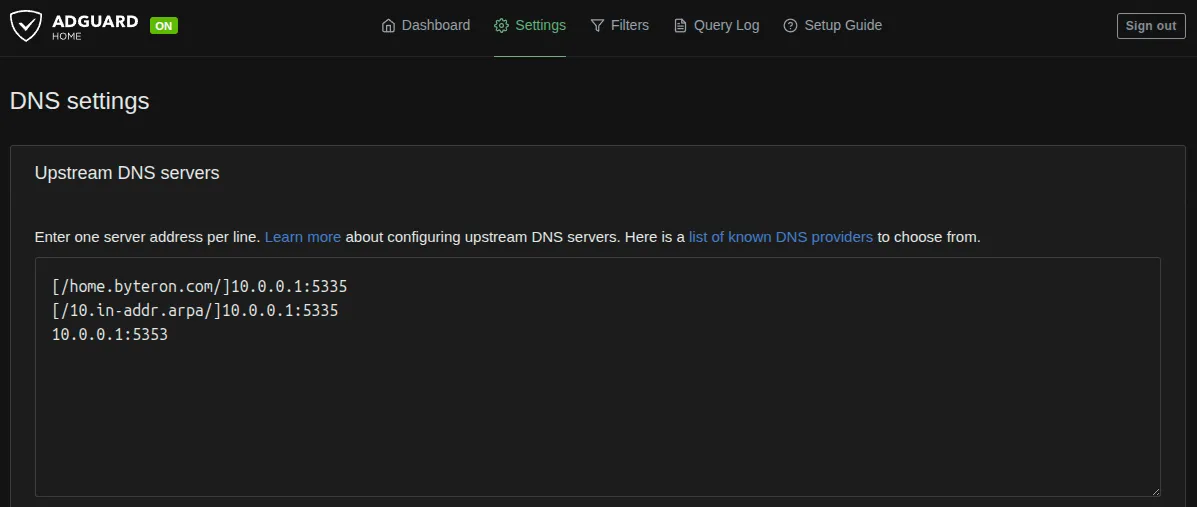
DNS Server Settings
Navigate to Settings → DNS Settings → DNS Server Configuration.
| Setting | Value | Reason |
|---|---|---|
| Rate Limit | 0 | Trusted network |
| EDNS Client Subnet | Disable | Prevents leaking subnet info |
| DNSSEC | Enable | Validate responses |
| Disable IPv6 | Enable | Prevents IPv6 DNS leaks |
| Blocking Mode | Default | Return NXDOMAIN |
Query Logging
Navigate to Settings → General Settings → Query Log.
Retention Settings
Query log retention: 90 days
Statistics retention: 90 days
I use 90 days for historical troubleshooting. Longer retention uses more disk space, so adjust based on what you have available.
Client IP Anonymization
Anonymize client IPs: DisableI disable this for per-device visibility. Enable if multiple people share your network and you want privacy.
Client Settings and Parental Controls
Navigate to Settings → Client Settings.
AdGuard supports per-client blocking levels and client tags for bulk management. Tags like kids-devices, iot-devices, or work-devices let you apply different filtering policies without configuring each device individually.
Settings → Parental Control offers Safe Browsing (Google Safe Browsing API) and Safe Search (forced safe search on Google, Bing, DuckDuckGo). Both send data to Google, so consider the privacy trade-off. I don’t use either since blocklists already cover malware protection and all traffic goes through VPN.
Monitoring and Maintenance
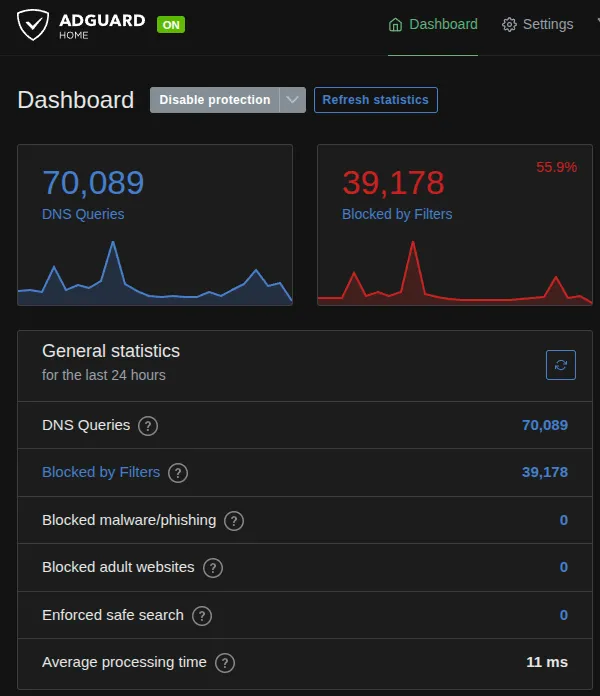
Dashboard Metrics
Navigate to Dashboard in AdGuard UI.
| Metric | What to look for |
|---|---|
| Blocked Queries | 15-25% average is typical. Higher suggests over-blocking |
| Top Blocked Domains | Review regularly, whitelist legitimate services |
| Top Clients | Devices making excessive queries could indicate malware or misconfigured apps |
Using Query Log
Navigate to Query Log.
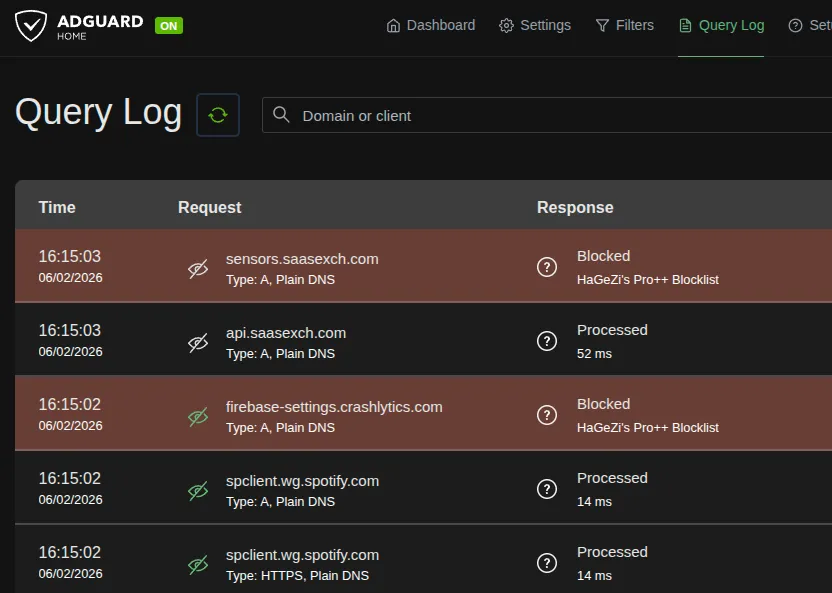
Filters:
- Blocked: Show only blocked queries
- Client: Filter by device IP
- Domain: Search specific domain
Troubleshooting workflow when user reports broken site:
- Filter query log by client IP
- Look for blocked queries during failure
- Match blocked domain to broken service
- Whitelist if false positive
Backups and Updates
Back up your config at Settings → General Settings → Backup and Restore before making major changes. Blocklists auto-update every 24 hours.
General Advice
Avoid enabling too many blocklists at once. Lists overlap, and stacking them blindly makes it harder to trace what blocked what when something breaks. Add lists one at a time and give each a few days before adding the next.
Regularly review your query logs and whitelist anything that shouldn’t be blocked. False positives are inevitable with any blocklist, and catching them early saves you from chasing down “why doesn’t this site work” later.
[references] ▸
-
[1.1]
AdGuard Home GitHub — Official repository and documentation
-
[1.2]
AdGuard Home Wiki — Configuration guides and advanced setup
-
[2.1]
OISD Blocklist — Comprehensive domain blocklists
-
[2.2]
Firebog — Collection of reputable blocklists
-
[2.3]
Hagezi's DNS Blocklists — Multi-category DNS blocking lists
-
[3.1]
r/AdGuard — AdGuard subreddit
-
[3.2]
OPNsense Forum — OPNsense community support
[changelog] ▸
- → Initial publication
Disclaimer
Use the information provided here at your own risk, but if you find errors or issues in this guide, leave a comment and I’ll try to address them ASAP.
Comments