TL;DR
If you use a computer and you don’t have a password manager, then you are doing it wrong. Without knowing anything else, it is almost certain that you are guilty of reusing passwords to some extent. We will fix that.
Password manager is essential in the current digital world. It allows you to use unique passwords everywhere, without any memorization.
This guide explains why you need one, how they actually work, and which password manager to choose.
Prerequisites:
- None
- Optional: Everything about passwords
What you’ll learn:
- Why password reuse kills more accounts than weak passwords
- How password managers work
- Why cloud beats local storage for most people
- Which password manager to actually use
- How to implement it properly
If a 12-15 year old can figure out the locking mechanism of a physical padlock through observation and persistence, what do you think sophisticated attackers can do to your passwords?
This is the fundamental truth of security: if someone has unlimited time and access to try breaking your security, they will eventually succeed. The only question is how long it takes.
That padlock story isn’t just about physical locks. It’s about every security mechanism that relies on a single secret, including passwords.
The Password Problem
Modern security requires hundreds of passwords across 100+ online accounts. They need to be unique, strong, and updated when breaches happen.
Can you memorize 200 passwords that look like k7$mXpL9#vN2qR8zT3wY?
No. Nobody can.
This inevitably causes most users to reuse their passwords, not because they want to but due to the cognitive overload of memorizing 100s of random passwords. Some more “clever” users try to avoid this reuse by using variations of patterns like MyPassword123-Amazon and MyPassword123-Gmail.
While this may appear easier to remember and better in terms of security, the reality is that attackers test these patterns automatically.
But not every password needs to be difficult and hard, most of your accounts are “unimportant” and only some, such as banking apps, government related accounts etc are classified as “important”. Most users will have 10-20 “important” accounts that need a hard password. This is surprisingly a common approach, “important” sites get strong passwords and “unimportant” sites get weak ones.
While this is better than reusing same password everywhere, attackers can often breach weak sites to get information that they can then leverage to pivot to a different account.
They are bad.
Don’t do it
The Real Threat: Credential Stuffing
I dive deeper into passwords in my everything about passwords blog so if you require more in depth explanations, check it out.
Most password policies are bad because of outdated password complexity rules that are just plain wrong. Usually the complexity advice focuses on making passwords hard to guess with special characters, numbers, rotation policies. But that’s not how most accounts get compromised.
Here’s what actually happens. Site A gets breached. Could be a forum, shopping site, anything. Attackers steal millions of username/password pairs. These credentials go public through breach databases that get sold or leaked. Over 12 billion credentials are publicly available right now. Attackers use botnets to test your email and password combination on thousands of sites. Your other accounts fall. Amazon, Gmail, banking, social media. Anywhere you reused that password.
flowchart LR
    A[Site A Breached]:::danger --> B[Credentials Leaked]
    B --> C[Breach Database]
    C --> D[Botnet Testing]
    D --> E[Amazon]:::danger
    D --> F[Gmail]:::danger
    D --> G[Banking]:::danger
    D --> H[Social Media]:::danger
This is credential stuffing. According to Verizon’s 2024 Data Breach Investigations Report, nearly 40% of analyzed breaches used compromised credentials, more than double the breaches that used phishing or vulnerability exploitation. Not weak passwords. Reused passwords.
Over 12 billion credentials from breaches are publicly available. Visit Have I Been Pwned to check if your email appears in known breaches. Chances are, it does.
What is a Password Manager?
A single solution to multiple issues related to password based authentication. You can think of it as an encrypted database that stores all your passwords, generates strong random passwords, and auto-fills them when needed. Think of it as a digital vault that only you can unlock.
| Feature | Why It Matters |
|---|---|
| Strong encryption | AES-256 with zero-knowledge architecture |
| Auto-fill | Makes unique passwords practical |
| Password generator | Creates cryptographically secure passwords |
| Sync across devices | Always up to date everywhere |
| Security audit | Finds weak, reused, or compromised passwords |
| Emergency access | Designated contacts can access your vault |
| Password sharing | Share passwords with anyone e.g family member |
Not Just an Encrypted Text File
The common objection: Can't I just use an encrypted text file?. While the harsh reality is that most users don’t even use the encrypted part, they just use a .txt file.
Regardless of encryption, storing passwords in a file is fundamentally broken for the same reason local password databases don’t work for most people.
Remember the padlock story? If someone steals the physical lock, they can work on cracking it with unlimited time and no detection.
Same with password files. If someone steals your encrypted file through laptop theft, malware, or cloud backup compromise, they can try cracking it offline with no rate limiting. They can use rainbow tables and GPU clusters. They can take months or years. You’ll never know they’re trying.
Once the file is stolen, it’s a race between their cracking attempts and your password strength. Given enough time, they win.
You can learn more about online vs offline attacks
How Password Managers Work
Password managers use zero-knowledge architecture. The company operating the service cannot access your passwords.
- Even if they wanted to.
- Even if served with a warrant.
- Even if they get hacked.
- Even if you authorised them to do so.
The process works like this.
flowchart TB
    N1(Only password you memorize):::note -.- MP[🔑 Master Password]
    MP --> KD[Key Derivation]
    N2(Deliberately slow):::note -.- KD
    KD --> KEY[Encryption Key]
    N3(Never transmitted):::note -.- KEY
    KEY --> ENC[AES-256 Encryption]
    N4(Local only):::note -.- ENC
    ENC --> BLOB[Encrypted Blob]
    N5(Unreadable without key):::note -.- BLOB
    BLOB <-->|Sync| CLOUD[☁️ Cloud Server]
    N6(Cannot decrypt):::note -.- CLOUD
    CLOUD -.->|Retrieve| DEC[Local Decryption]
    MP -.->|Re-enter to decrypt| DEC
    DEC --> ACCESS[✅ Access Passwords]:::success

    class MP success
    class CLOUD neutral
The critical security properties:
- Master password never leaves your device. The cloud server never sees it, not even in hashed form.
- Encryption key is derived locally, used locally, then discarded. It’s regenerated from your master password each time you unlock.
- Key derivation is deliberately slow. PBKDF2 runs hundreds of thousands of iterations. Argon2 is even better. This makes brute-force attacks impractical even if someone steals the encrypted blob.
- The company stores only encrypted data. They mathematically cannot decrypt it without your master password.
Zero-knowledge means the service provider has zero knowledge of your passwords.
If they get hacked, attackers get encrypted data that’s useless without your master password. If the company goes rogue, they still can’t read your passwords. If served with a warrant, they can only provide encrypted data.
This is why you can never forget your master password. The company genuinely cannot reset it because they never knew it.
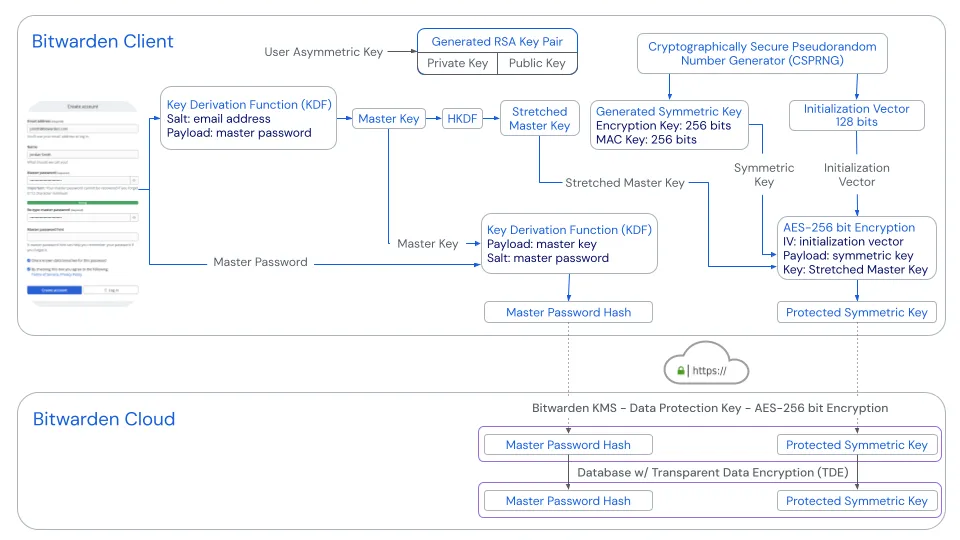
Bitwarden's official security diagrams
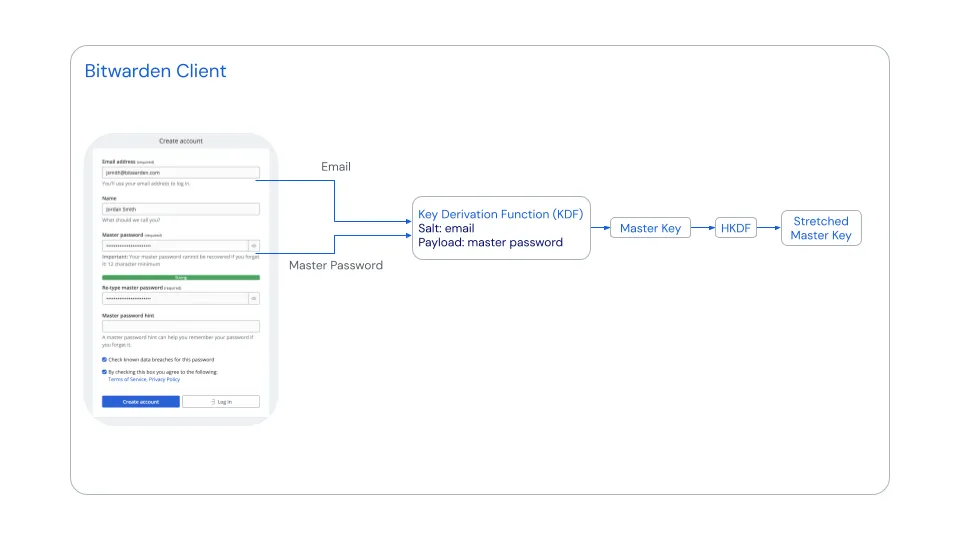
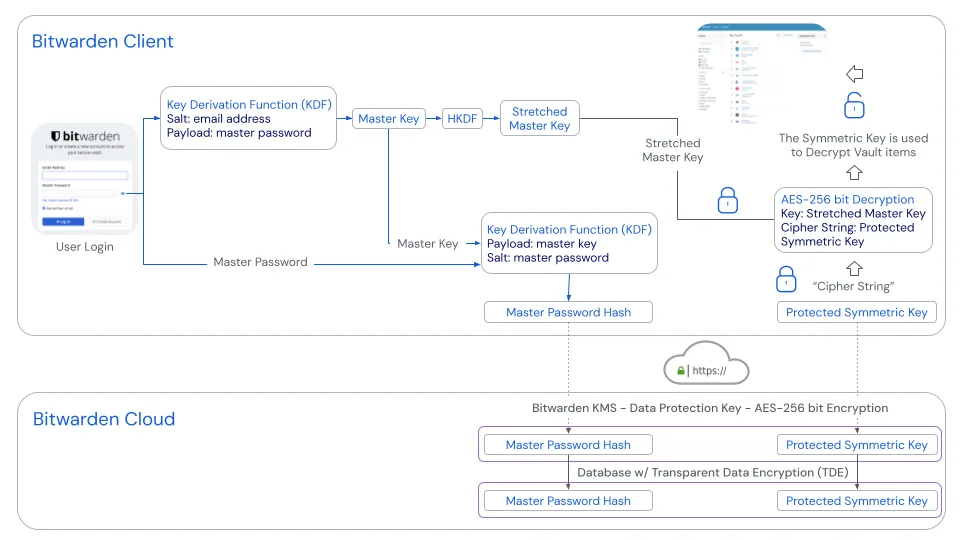
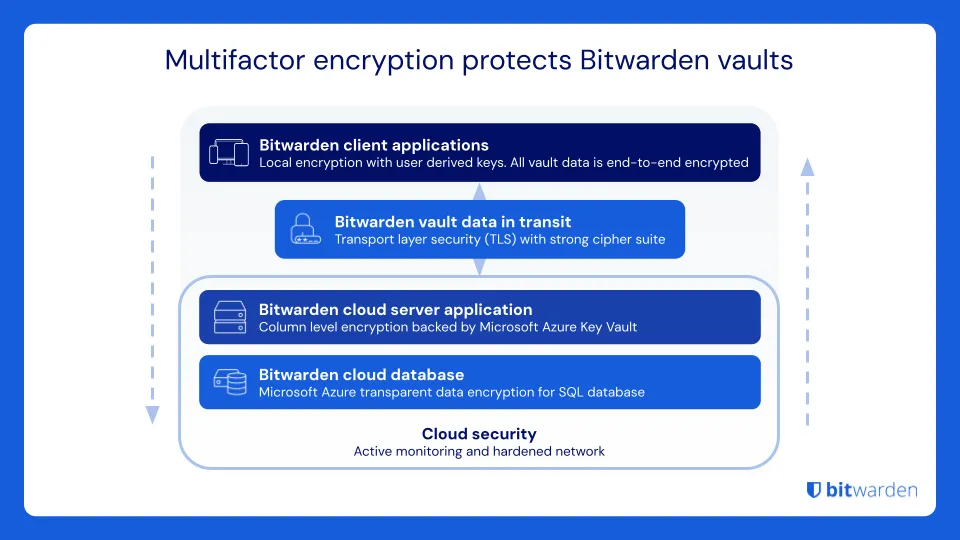
All diagrams sourced from the Bitwarden Security White Paper.
Account creation
Key derivation
Login flow
Vault encryption
How This Solves the File Problem
Unlike a stolen encrypted file, password managers with zero-knowledge architecture have rate limiting on failed login attempts. They have breach detection that notifies you if the database is accessed. They use PBKDF2 or Argon2 key derivation functions that slow down brute force attacks. No offline attacks because the attacker needs to interact with the server, which has defenses.
The company stores encrypted data, but the security model assumes they might be compromised. That’s why encryption happens client-side with keys they never see.
Cloud vs Local
Some people insist on local passwords over cloud solutions. The argument is you shouldn’t trust cloud companies with your passwords.
While this is true, in the sense that you shouldn’t trust the cloud providers.
It is still wrong for 99% of people.
The Local Database Reality
Regardless of what software/tool you choose to use, secure local storage of passwords in a file, database or anything else is difficult. You’re responsible for backing it up. Hard drive crash means you lose everything. You’re responsible for syncing across devices. Your phone needs passwords too. How do you sync? Dropbox? Now you’re trusting Dropbox anyway. You’re responsible for handling file conflicts when the desktop version updates but your phone has the old version. You’re responsible for physical security when your laptop gets stolen and an attacker has unlimited time for offline cracking. There’s no emergency access if you die or forget your master password. The file is permanently locked. Worst of all, you have to manually update the file everywhere, everytime you change a password.
What actually happens in practice? File gets lost in hard drive crash because you didn’t back it up. Sync breaks and you have three conflicting versions across devices. You forget the master password and the file is permanently bricked. Your phone doesn’t have the latest passwords so you start resetting them and the file diverges further. Eventually you give up and maybe even go back to password reuse.
Why Cloud Wins for Most People
Cloud password managers like Bitwarden and 1Password are encrypted locally before syncing.
- The company can’t read your passwords because of zero-knowledge architecture.
- They have professional security teams with full-time engineers auditing the code.
- Some password managers are even open source so you and anyone else can audit their codebase.
- Sync actually works reliably and automatically across all devices.
- They have emergency access protocols where designated contacts can request access after a waiting period.
- There’s cross-device consistency with one source of truth that’s always current.
- Independent security firms regularly audit the codebase.
- They include breach monitoring that notifies you if your credentials appear in new breaches.
Use local password databases like KeePass or KeePassXC if you have a high-threat model (journalist, activist, facing nation-state adversaries). Or if you have the technical expertise to handle backups and sync properly. Or if you already run self-hosted infrastructure like Syncthing.
KeePass is open source, well-audited, and stores everything locally. But you’re responsible for backups, sync, and not losing the file. For most people, that tradeoff isn’t worth it.
A password manager you don’t use because it’s too complicated is worse than a simpler solution you actually use consistently. Security tools must be usable to be secure. If the tool is painful, people route around it. That routing is almost always less secure.
What Makes a Strong Password?
Now that we’ve established why you need a password manager and how they work, let’s talk about what goes inside them.
If you’ve read my everything about passwords blog, you know the answer already. But for new visitors, a quick quiz. Which password is stronger?
ZU$Xgb8!- 8 characters, complex with special characters and mixed casefishwithahat- 12 characters, all lowercase, simple dictionary words
The counter-intuitive truth is that increasing password length is far more effective than increasing complexity.
The good news is that with a password manager, you don’t have to choose. It generates passwords like k7$mXpL9#vN2qR8zT3wY that are both long and complex. You never see them, never type them, never memorize them. The password manager just fills them in automatically.
Although from security perspective, k7$mXpL9#vN2qR8zT3wY (20 characters) is great.
In practice, I guarantee that you do not want this.
Instead, use the generator that comes with password manager and generate passphrase by choosing:
- Number of words
- Word Separator
For example, let’s say 5 words, with separator @ and also including a number.
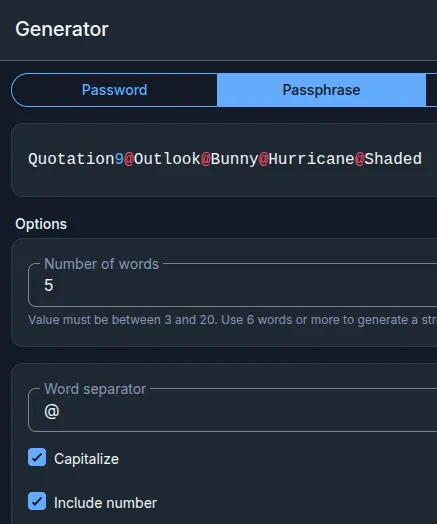
Our generator generated Quotation9@Outlook@Bunny@Hurricane@Shaded which is 41 characters long.
Another Quiz time. Which password is easier to type?
k7$mXpL9#vN2qR8zT3wY- 20 characters, complex with special characters and mixed caseQuotation9@Outlook@Bunny@Hurricane@Shaded- 41 characters, 5 words with first letter being capital, five occurrences of @, and one digit.
Which Password Manager to Use
Recommended: Bitwarden
I’ve used Bitwarden for over 4 years now. Before that, I was on LastPass. Then the 2022 breach happened, encrypted vaults got stolen, and I migrated to Bitwarden. Never looked back.
I use the cloud version with a family plan. My wife, parents, and siblings are all on it. Everyone in my family now has unique passwords for everything, managed properly. My wife actually likes using it, which says a lot about the UX.
I work in security and IT. Passwords are part of my daily workflow. Bitwarden handles all of it without getting in the way.
After the last few UI updates, I genuinely can’t fault it anymore. It used to look dated compared to 1Password. Not anymore.
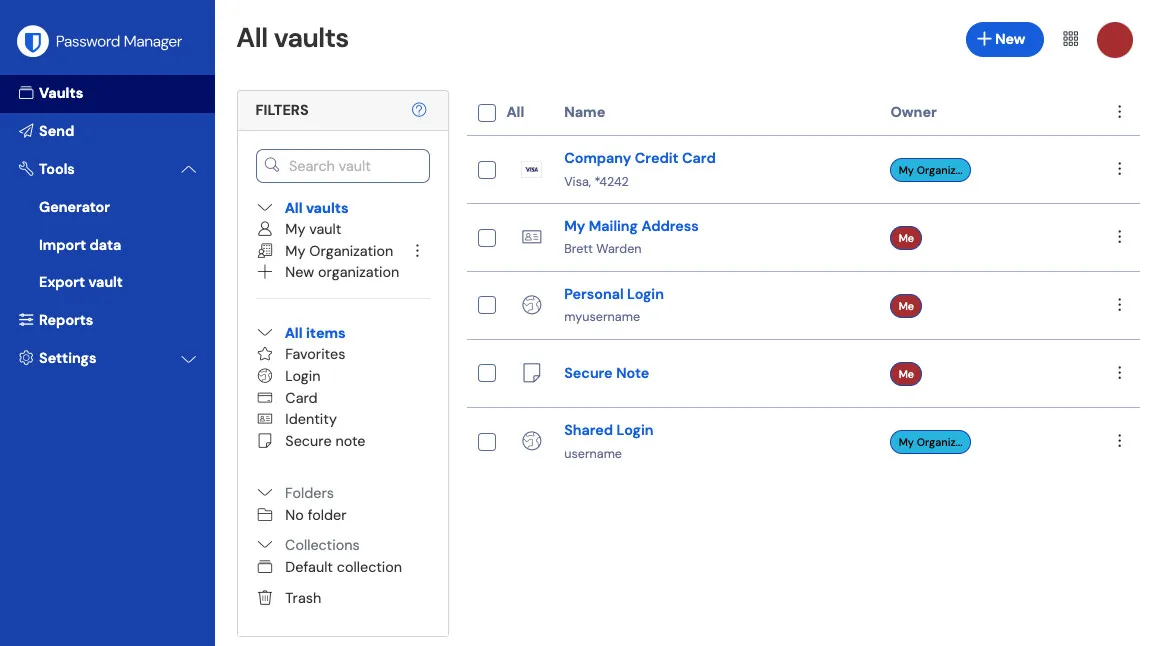
Why Bitwarden specifically:
- Open source with publicly audited code. No hidden backdoors.
- Independently audited by third-party security firms.
- Zero-knowledge architecture verified by auditors.
- Free tier with unlimited passwords and sync across unlimited devices.
- Self-hosting option if you want full control.
- Works on all platforms: browser extensions, mobile apps, desktop apps, and CLI.
- Family sharing that actually works well.
- 40/year for 6 users.
Bitwarden’s family plan is what I use. My wife, parents, and siblings are all on it. Everyone gets their own vault, you can share passwords between family members when needed, and you can set up emergency access for each other. My parents who aren’t particularly technical figured it out without my help. $40/year for 6 people is hard to beat.
This is what I use daily, what my entire family uses, and what I recommend to everyone. Open source, audited, works everywhere, and the free tier is genuinely usable.
Alternative: 1Password
- Excellent UX with best-in-class user experience and polished design.
- Regularly audited by independent security firms.
- Strong zero-knowledge architecture with verified encryption implementation.
- Family sharing works very well.
- Watchtower feature monitors for breached passwords and weak credentials.
- Travel Mode lets you temporarily hide sensitive vaults when crossing borders.
- Cost: $36/year personal, $60/year family for 5 people.
Alternative: Proton Pass
- Privacy-focused from the team behind ProtonMail.
- Open source with auditable code.
- Zero-knowledge with client-side encryption.
- Email aliasing with built-in email alias generation.
- Integrated authenticator for 2FA codes.
- Cost: Free tier available, Pass Plus at 24/year), or Proton Unlimited at $13/month includes Pass plus Mail plus VPN plus Drive.
What About Dashlane, NordPass, Keeper?
They exist. They work. I don’t recommend them over the three above.
Dashlane has good UX and security, but costs $60/year for features Bitwarden gives you for $10. They also killed their free tier in 2025. If money isn’t a concern and you like their interface, it’s fine.
NordPass is from the NordVPN team. Solid security, decent product. But if you’re not already in the Nord ecosystem, there’s no compelling reason to pick it over Bitwarden.
Keeper targets enterprise. Overkill for personal use, and the pricing reflects that.
None of these are bad choices. But none offer anything that justifies picking them over Bitwarden (free, open source) or 1Password (best UX).
Browser Built-Ins (Chrome, Firefox, Safari)
Your browser has a built-in password manager. It’s convenient. It’s also not good enough.
- No zero-knowledge architecture. Your passwords are tied to your browser account (Google, Apple, Firefox). If that account is compromised, so are your passwords.
- Limited to one browser. Use Chrome on desktop and Safari on iPhone? Good luck syncing. You end up with fragmented password storage.
- Weak password generation. Browser generators are basic. No passphrase options, limited customization.
- No secure sharing. Need to share a Netflix password with family? Browser password managers don’t do this properly.
- No emergency access. If you die, your family can’t access your accounts through any legitimate process.
- Basic security auditing. Chrome will tell you if a password appeared in a breach. It won’t audit password strength, reuse patterns, or give you actionable reports.
If you’re currently using Chrome’s password manager, that’s fine as a starting point. Export your passwords and import them into Bitwarden. It takes 5 minutes.
Avoid: LastPass
Terrible security practice. LastPass has had multiple serious security incidents.
- The 2022 breach where encrypted password vaults were stolen and exposed to offline cracking attacks.
- Poor disclosure practices where they were slow to inform users and downplayed severity.
- Free tier crippled to one device type only.
- Desktop or mobile, not both.
- Repeated incidents showing a pattern of issues.
Use Bitwarden instead. Open source, better security track record, free tier that actually works.
Common Objections
Single point of failure
What If the Password Manager Gets Hacked?
What If I Forget My Master Password?
I’ll Just Remember My Passwords
My Company Bans Password Managers
Implementation That Works
Choose Your Password Manager
Based on the recommendations above, most people should use Bitwarden because it’s free and open source. Use 1Password if you want the best UX and are willing to pay $36/year. Use Proton Pass if you’re already a Proton user.
Create a Strong Master Password
This is the one password you’ll memorize. Make it strong.
Random words using Diceware method work well. Something like correct horse battery staple dolphin umbrella. Six random words gives you approximately 77 bits of entropy. Extremely strong and reasonably memorable.
Or use a passphrase like MyDogAte17PancakesLastThursday!. Personal reference plus numbers plus length equals strong and memorable.
Requirements are minimum 16 characters with longer being better. Never used anywhere else before. Not a quote from a book or movie because those are in attack dictionaries. Memorable to you because you can’t reset this if you forget it.
Enable 2FA on Your Password Manager
Your password manager account should have two-factor authentication enabled.
Best option is a hardware key like YubiKey or Titan Key. Phishing-proof and very secure. Next best is an authenticator app like Authy or Bitwarden Authenticator. Good security. Avoid SMS because it’s vulnerable to SIM swapping.
Import Existing Passwords
Most password managers can import from browser password stores like Chrome, Firefox, and Safari. Or from CSV files. Or from other password managers.
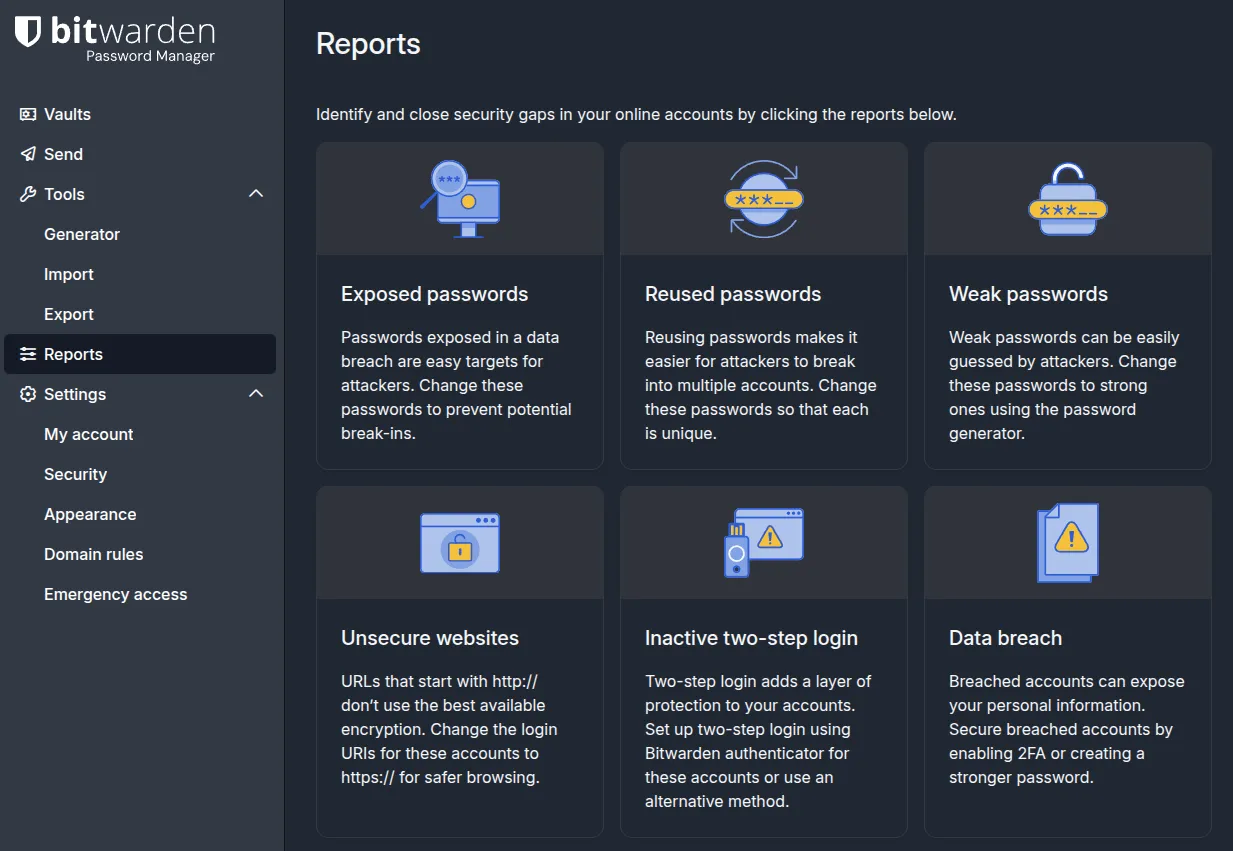
After importing, run the security audit. It will identify reused passwords where you should generate unique replacements. It will find weak passwords where you should regenerate with longer and stronger versions. It will flag compromised passwords that appear in known breaches where you should change them immediately.
Set Up Emergency Access
Designate someone who can access your vault if you die or become incapacitated.
How it works is you designate a trusted contact like a spouse, family member, or close friend. They request access. You get notified. If you don’t deny within a number of days you set, typically 30, they get access. If you deny, they don’t get access.
This solves the “what happens if I die” problem.
Install Extensions and Apps
Install the password manager on every device you use. Browser extensions for Chrome, Firefox, Safari, and Edge. Mobile apps for iOS and Android. Desktop apps are optional.
On mobile:
- Enable autofill in your phone’s settings (iOS: Settings → Passwords → AutoFill Passwords; Android: Settings → Passwords & accounts → Autofill service)
- Biometric unlock (Face ID, fingerprint) is available. It’s convenient but trades security for convenience. Personally, I do not recommend biometrics for the vault, but it’s your call.
- The mobile app will prompt you to autofill in browsers and other apps. Accept those permissions.
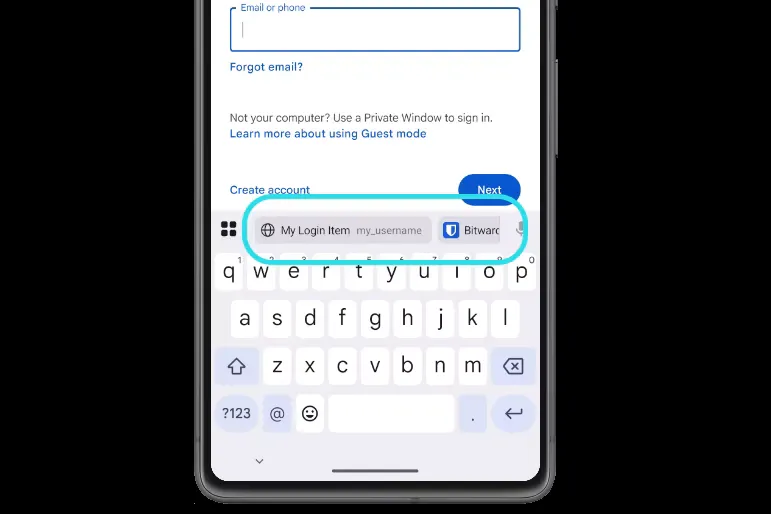
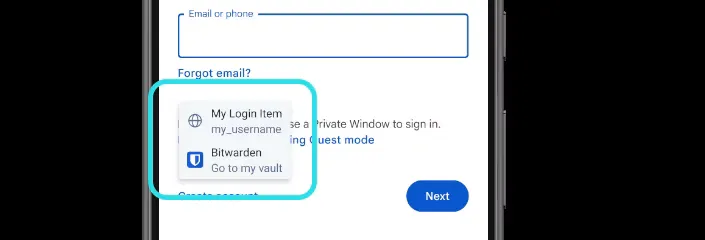
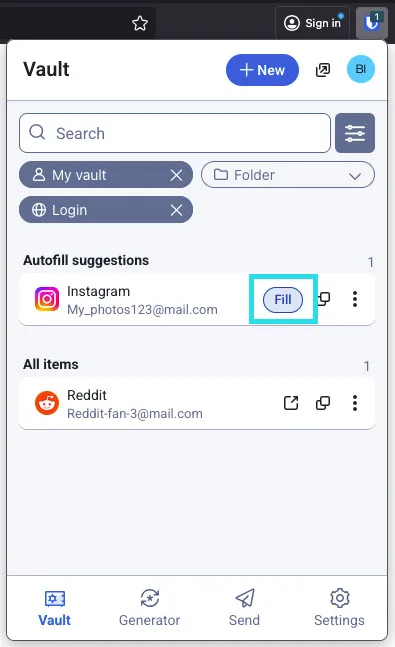
Mobile is where password managers prove their value. Typing Quotation9@Outlook@Bunny@Hurricane@Shaded on a phone keyboard is miserable. Autofill makes it instant and essentially frictionless as seen below.
Auto Fill on Mobile (Inline)
Auto Fill on Mobile (Popup)
Actually Use It
This is the most important step.
When creating new accounts, use the password generator. Let it create Quotation9@Outlook@Bunny@Hurricane@Shaded as in the example earlier. It doesn’t even need to be 5 words to make it this long. You will rarely need to type it manually anyway, Auto-fill does that job for you. I would still recommend it to be at least 16, preferably 20+ characters total.
Since we established that length is very important, I would go even higher than 20 characters, but be warned that some websites have upper limits.
When logging in, the browser extension auto-fills. Or use the search function in the password manager. Don’t type passwords manually because that defeats the point.
Except on devices where you can’t have password manager, then you want easy to type passphrase like Quotation9@Outlook@Bunny@Hurricane@Shaded even though it is very long.
When changing passwords, update in the password manager immediately. Use the generator for the new password. Sync happens automatically.
The password manager is only effective if you use it everywhere consistently.
Final Thoughts
Let me bring this back to that padlock story that we started with.
The lesson wasn’t just that locks can be picked. The lesson was that any security mechanism someone has unlimited time to attack will eventually fail.
- That’s why local password files don’t work. Once stolen, an attacker has unlimited time for offline cracking.
- That’s why password reuse doesn’t work. Breached databases give attackers unlimited time to test your credentials everywhere.
- That’s why weak passwords don’t work. Modern GPU clusters can try billions of combinations per second.
Password managers with zero-knowledge architecture solve this. They ensure attackers never get offline access to crack at leisure through cloud storage and rate limiting. They make unique passwords practical through auto-fill and sync. They generate strong passwords you’d never create yourself with both length and complexity. They audit your security posture by finding weak, reused, or compromised passwords.
The master password is a single point of failure by design. Write it down and store it securely if needed. Zero-knowledge architecture means if you forget it, even the company can’t help you recover.
A single strong master password also protects your passwords in rare cases such as the LastPass hack where attackers were able to obtain the encrypted blob containing your passwords. Even though they have theoretically infinite time to crack it, a strong master password such as Quotation9@Outlook@Bunny@Hurricane@Shaded will still take one quintillion years to crack. You can live with that.
At the same time, that single strong secret protecting hundreds of unique strong passwords is far better than the alternative. Dozens of reused weak passwords protecting those same accounts.
[references] ▸
-
[1.1]
Everything About Passwords — Password entropy, complexity vs length, and NIST guidelines
-
[2.1]
Bitwarden — Open source password manager (my recommendation)
-
[2.2]
1Password — Premium password manager with excellent UX
-
[2.3]
Proton Pass — Privacy-focused password manager from Proton
-
[3.1]
Have I Been Pwned — Check if your email appears in known breaches
-
[3.2]
Verizon DBIR 2024 — Data Breach Investigations Report - credential theft statistics
-
[3.3]
NIST Password Guidelines — Official NIST guidance on password security
[changelog] ▸
- → Complete rewrite combining 2022 draft storytelling with current technical content
- → Added padlock story for engaging introduction
- → Expanded cloud vs local comparison with practical reality
- → Added Proton Pass recommendation
- → Updated breach statistics and Verizon DBIR reference
- → Fixed frontmatter to match project schema
Disclaimer
Use the information provided here at your own risk. Security is a moving target and threat models vary. If you find errors or issues in this guide, let me know and I’ll address them ASAP.
Comments