Plex Remote Access Through OPNsense VPN
TL;DR
Once you’ve implemented this OPNsense guide you’ll have issues with services like Plex. This happens because most VPN providers don’t support port forwarding.
This guide shows how to enable Plex remote access by selectively routing only Plex traffic to WAN while keeping everything else on VPN.
Trade-off: Your ISP can see Plex traffic. Everything else stays encrypted through VPN.
Prerequisites:
- OPNsense with VPN routing
- Plex with static IP
- SSH access
What you’ll do:
- Create firewall aliases and rules for Plex bypass
- Configure port forwarding for external access
- Verify setup with six targeted tests
Introduction
Plex remote access doesn’t work through VPN because Plex servers need to connect directly to plex.tv for authentication and relay services. This guide configures policy-based routing to send Plex traffic directly to WAN while everything else stays encrypted through VPN. Includes port forwarding for direct connections and verification tests.
Configuration Steps
Backup OPNsense config before making changes: System → Configuration → Backups
Step 1: Create Plex Aliases
Navigate to Firewall → Aliases and create the following:
Host Alias for Plex Server:
| Field | Value |
|---|---|
| Name | PLEX |
| Type | Host(s) |
| Content | 10.0.10.200 |
| Description | Plex Media Server IP |
Port Alias for Plex Ports:
| Field | Value |
|---|---|
| Name | PLEX_PORTS |
| Type | Port(s) |
| Content | 443, 1900, 3005, 8324, 32400, 32469, 32410:32414 |
| Description | Plex required ports |
Why these ports?
- 32400: Primary Plex server port (HTTPS)
- 443: Plex web interface and secure connections
- 1900: DLNA/UPnP discovery
- 3005: Plex Companion
- 8324: Roku via Plex Companion
- 32469: Plex DLNA Server
- 32410-32414: GDM network discovery
These aliases work the same way as the aliases created in the main OPNsense guide.
Step 2: Create WAN Port Forward Rule
Navigate to Firewall → NAT → Port Forward and create:
| Field | Value |
|---|---|
| Interface | WAN |
| Protocol | TCP |
| Source | Any |
| Destination | WAN address |
| Destination Port Range | 32400 |
| Redirect Target IP | PLEX (alias) |
| Redirect Target Port | 32400 |
| NAT reflection | Disable |
| Filter rule association | Pass |
| Description | Redirect WAN to PLEX on 32400 |
NAT reflection allows internal devices to access Plex using your public WAN IP, which adds unnecessary complexity and can cause routing issues. Internal devices should always use the local IP 10.0.10.200 directly.
Step 3: Create Floating Rules for Plex Bypass
Navigate to Firewall → Rules → Floating and create the following rule:
Plex Bypass VPN to WAN:
Note: Select the specific interface where your Plex server resides. This floating rule applies only to that interface.
| Field | Value |
|---|---|
| Action | Pass |
| Quick | ✓ Check |
| Interface | Your Plex VLAN (e.g., DMZ_VL10) |
| Direction | in |
| Protocol | TCP/UDP |
| Source | PLEX (alias) |
| Destination | !IPv4_RFC1918 (inverted - external traffic only) |
| Destination Port | PLEX_PORTS (alias) |
| Gateway | WAN_DHCP |
| Description | PLEX bypass VPN to WAN |
| Log | ✓ Enable (for troubleshooting) |
Critical: Rule Placement
This rule MUST be placed ABOVE your VPN routing rules in the floating rules list. Firewall rules are processed top to bottom, and the first match wins (with quick enabled).
Correct rule order:
Priority  | Rule Description
----------|--------------------------------------------------
1         | Anti-lockout (allow ports 443, 22 to firewall)
2         | Allow VPN tunnel establishment (MULLVAD_ENDPOINTS to WAN)
3         | PLEX bypass VPN to WAN ← HERE
4         | VPN routing for VPN_OUT_IG (route to WAN_VPN_GRP)
5         | Kill switch (block all other WAN traffic)
Why order matters:
Rules with quick enabled stop processing on first match. If you followed the main guide, your floating rules already include anti-lockout, VPN establishment MULLVAD_ENDPOINTS, and VPN routing VPN_OUT_IG. Plex bypass goes between VPN establishment and VPN routing.
Step 4: Verify Configuration
After applying changes, verify your configuration:
Check aliases exist:
# SSH into OPNsense
pfctl -t PLEX -T show
# Should output: 10.0.10.200 ← Plex IP
Check port forward exists:
pfctl -sn | grep "rdr.*32400.*PLEX"
# Should show a redirect rule on WAN interface like this:
rdr on igb0 inet proto tcp from any to (igb0) port = 32400 -> <PLEX> port 32400 round-robin
Check floating rules loaded:
pfctl -sr | grep "from <PLEX>" | grep "route-to"
# Should show bypass rules routing to WAN gateway
Testing Your Setup
Now that configuration is complete, verify everything works correctly.
Test 1: Verify Policy-Based Routing Rules Are Loaded
| Location | Validates |
|---|---|
| OPNsense SSH | Firewall routes Plex traffic to WAN gateway |
pfctl -sr | grep "from <PLEX>" | grep "route-to"Expect: 14 lines (7 TCP + 7 UDP) with route-to (igb0 ...) routing to your WAN gateway:
pass in log quick on vlan0.10 route-to (igb0 WAN_GW) inet proto tcp from <PLEX> to ! <IPv4_RFC1918> port = https flags S/SA keep state label "..."
pass in log quick on vlan0.10 route-to (igb0 WAN_GW) inet proto tcp from <PLEX> to ! <IPv4_RFC1918> port = 32400 flags S/SA keep state label "..."
pass in log quick on vlan0.10 route-to (igb0 WAN_GW) inet proto tcp from <PLEX> to ! <IPv4_RFC1918> port = ssdp flags S/SA keep state label "..."
...
pass in log quick on vlan0.10 route-to (igb0 WAN_GW) inet proto udp from <PLEX> to ! <IPv4_RFC1918> port = https keep state label "..."
pass in log quick on vlan0.10 route-to (igb0 WAN_GW) inet proto udp from <PLEX> to ! <IPv4_RFC1918> port = 32400 keep state label "..."
Note: ssdp = port 1900, https = port 443. The label hash is auto-generated by OPNsense.
Test 2: Verify Active Connections Use WAN
| Location | Validates |
|---|---|
| OPNsense SSH | Live Plex connections show WAN IP, not VPN IP |
Plex must be actively streaming or connecting for this test.
# Replace PLEX_IP and WAN_IP with your actual IPs
pfctl -ss | grep "10.0.10.200" | grep "YOUR_WAN_IP"
Expect: Connections showing WAN IP (not VPN IP). You’ll see two patterns:
Outbound (Plex connecting to plex.tv):
all tcp 203.0.113.45:13236 (10.0.10.200:35142) -> 34.238.225.186:443       ESTABLISHED:ESTABLISHED
all tcp 203.0.113.45:54943 (10.0.10.200:45042) -> 172.105.64.14:443       ESTABLISHED:ESTABLISHED
all tcp 203.0.113.45:26637 (10.0.10.200:53022) -> 172.105.64.14:443       ESTABLISHED:ESTABLISHED
203.0.113.45:13236 (10.0.10.200:35142) -> 34.238.225.186:443
└─────┬──────┘ └──────┬──────┘ └───────┬────────┘
Your WAN IP Plex local IP Plex.tv server
(NAT translated)Inbound (remote clients connecting to Plex via port forward):
all tcp 10.0.10.200:32400 (203.0.113.45:32400) <- 82.169.178.68:55543       ESTABLISHED:ESTABLISHED
all tcp 10.0.10.200:32400 (203.0.113.45:32400) <- 87.212.176.139:38166       ESTABLISHED:ESTABLISHED
all tcp 10.0.10.200:32400 (203.0.113.45:32400) <- 84.106.0.11:50892       ESTABLISHED:ESTABLISHED
Both patterns confirm Plex traffic uses WAN, not VPN.
Test 3: Verify No Plex Traffic Through VPN
| Location | Validates |
|---|---|
| OPNsense SSH | No Plex traffic leaking through VPN tunnels |
# Replace VPN interface names with yours (wg0, wg1, UK_VPN, DE_VPN, etc.)
pfctl -ss | grep "10.0.10.200" | grep -E "wg0|wg1|UK_VPN|DE_VPN" | wc -l
Expect: 0
A count of 1 may indicate a stale connection from before rules were applied - this will timeout naturally.
Test 4: Verify Port Forward Exists
| Location | Validates |
|---|---|
| OPNsense SSH | Port 32400 forwards from WAN to Plex server |
pfctl -sn | grep "32400.*<PLEX>"Expect: Redirect rule on your WAN interface (igb0 or similar):
rdr on igb0 inet proto tcp from any to (igb0) port = 32400 -> <PLEX> port 32400 round-robinMultiple rdr rules for different interfaces (VLANs, VPN) is normal - the WAN interface rule is what matters.
Test 5: Test External Plex Access from Internet
| Location | Validates |
|---|---|
| External device (mobile data, VPS, friend’s network) | Plex accessible from outside your network |
Testing from OPNsense itself won’t work - it can’t route to an IP assigned to its own interface. Use mobile data, a VPS, or a device whose traffic routes through VPN (effectively external).
# Replace WAN_IP with your actual WAN IP
curl -I http://WAN_IP:32400/web/index.html --max-time 5
Expect: HTTP 200 with Plex headers:
HTTP/1.1 200 OK
X-Plex-Protocol: 1.0
Cache-Control: no-cache
Content-Type: text/htmlTest 6: Plex Self-Reported IP
| Location | Validates |
|---|---|
| Browser (any device) | Plex detects WAN IP, not VPN IP |
- Access Plex:
http://10.0.10.200:32400/web - Navigate to:
Settings → Network → Show Advanced - Check “Public IP address” and “Remote Access” status
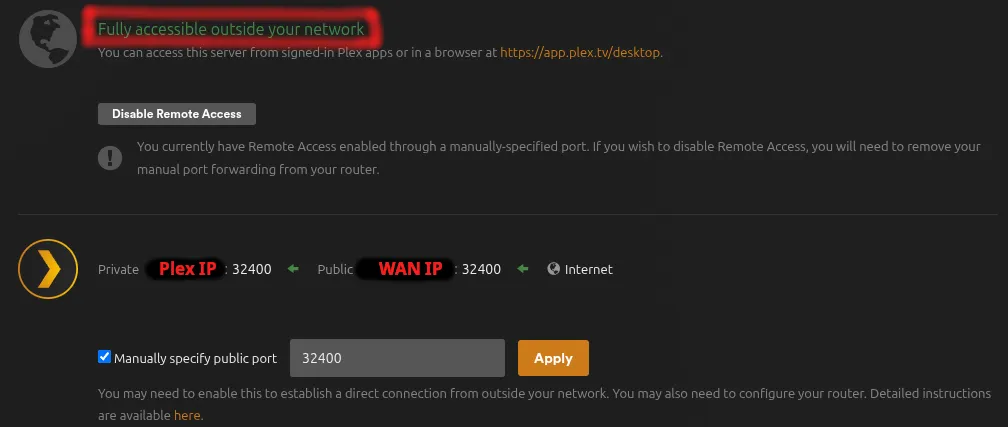
Expect:
- Public IP: Your WAN IP (not VPN IP like
10.65.x.x) - Remote Access: Green checkmark - “Fully accessible outside your network”
Notes
Your ISP sees all Plex traffic with this configuration - connection times, data volumes, and remote IPs. Everything else (browsing, downloads, other services) remains encrypted through VPN. If this trade-off is unacceptable, use a VPN provider with port forwarding or run a VPS reverse proxy instead.
[references] ▸
-
[1.1]
Building a Secure Home Network with OPNsense — Complete firewall configuration with VPN and VLAN setup
-
[1.2]
Testing Your OPNsense Setup — General verification procedures for OPNsense
- [2.1]
- [2.2]
[changelog] ▸
- → Initial publication
Disclaimer
Use the information provided here at your own risk, but if you find errors or issues in this guide, leave a comment and I’ll try to address them ASAP.
Comments